
Hosting a static website does not require a web server anymore. Modern cloud platforms allow you to serve HTML, CSS, JavaScript, and assets directly from object storage with high availability, global scale, and extremely low cost.
In this guide, you will learn how Azure Blob Storage static website hosting works, why it is designed this way, and how to deploy and automate a real production-ready static website step by step.
In practice, this approach simplifies deployment while reducing operational risk. Moreover, it removes the need for manual intervention. As a result, teams can focus on content instead of infrastructure. Most importantly, the system remains reliable even as traffic grows.
We will cover:
- Core theory (what happens behind the scenes)
- Practical setup (portal + CLI)
- CI/CD automation using GitHub
- Common mistakes and fixes
- Real-world best practices
🧠Understanding Static Website Hosting in Azure
A static website consists only of files that do not require server-side execution. These include HTML pages, CSS stylesheets, JavaScript files, images, fonts, and other assets. When a browser requests these files, the server simply returns them as-is.
Azure implements static website hosting by extending Azure Blob Storage, which is normally used for storing unstructured data. Instead of introducing a web server, Azure allows Blob Storage itself to respond to HTTP requests.
When static website hosting is enabled, Azure exposes a special web endpoint and serves files directly from a container named $web. This design removes the need for virtual machines, web servers, or runtime environments.
The key idea is simple:
Files are data, and data can be served directly.
Because Azure Storage is already designed to be massively scalable and highly available, static websites automatically inherit these properties.
Azure provides native support for static website hosting through Blob Storage, which is officially documented by Microsoft in their Azure Storage documentation.
🧩When and Why to Use Azure Blob Static Websites
Azure Blob static website hosting is best suited when:
- You are building landing pages, documentation, or portfolios
- You have a frontend-only app (React, Vue, Angular)
- You want extremely low hosting costs
- You do not need server-side logic
It is not suitable when:
- You need authentication handled by the backend
- You require server-side rendering
- You need APIs hosted on the same platform
In those cases, Azure App Service or Azure Static Web Apps are better choices. Blob static hosting is intentionally minimal and focused.
Creating the Azure Storage Account (Practical + Theory)
Before you can host a website, you need a storage account. A storage account acts as a namespace and security boundary for all stored data.
Create a Resource Group
az group create --name rg-static-site --location eastus
A resource group allows you to manage lifecycle, access control, and billing for all related resources.
Create the Storage Account
az storage account create \
  --name mystaticsite123 \
  --resource-group rg-static-site \
  --location eastus \
  --sku Standard_LRS \
  --kind StorageV2
Internally, Azure provisions storage endpoints, replication, and access layers. Nothing is public yet, and no website is enabled at this stage.
⚙️Enabling Static Website Hosting
Static website hosting is disabled by default to prevent accidental public exposure.
Enable via Azure Portal
- Open the Storage Account
- Go to Static website
- Toggle Enabled
- Set:
- Index document:
index.html - Error document:
404.html
- Index document:
- Save
Azure now automatically creates a container named $web and exposes a web endpoint.
What Happens Internally
Once enabled:
- Azure creates the
$webcontainer - Anonymous read access is enabled only for this endpoint
- Requests to the web endpoint map directly to blobs in
$web
📦Understanding the $web Container
The $web container is special:
- Files inside it are publicly accessible
- Files outside it are not served as a website
- File names are case-sensitive
This design prevents accidental exposure of unrelated blobs and keeps website content clearly separated.
📤 Uploading Website Files
Example Website Files
site/
 ├ index.html
 ├ 404.html
 ├ css/
 │   └ style.css
 └ js/
     └ app.js
Upload Using Azure CLI
az storage blob upload-batch \
  --account-name mystaticsite123 \
  --source ./site \
  --destination \$web
Once uploaded, files are immediately available through the static website endpoint.
🌐Accessing the Website
Azure provides a URL like:
https://mystaticsite123.z22.web.core.windows.net
Opening this URL loads index.html.
If a file is missing, Azure returns 404.html.
Architecture Overview
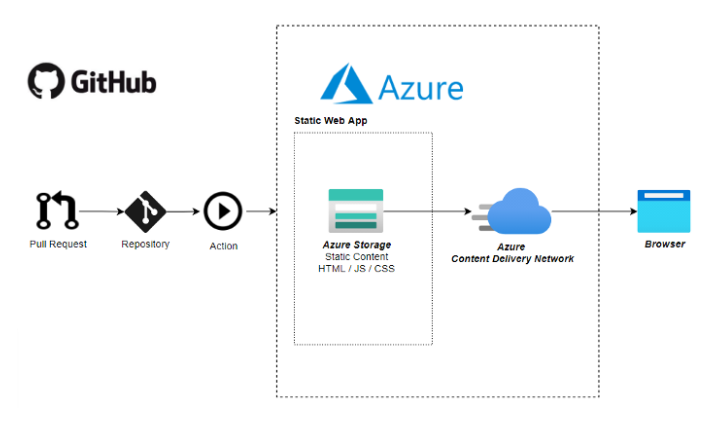
Diagram explanation:
This diagram shows how a browser directly accesses Azure Blob Storage. Files stored in the $web container are served without any web server, while Azure handles scaling and availability.
🔄 Automating Deployment with CI/CD (GitHub Actions)
Manual uploads do not scale. Automation ensures repeatability and safety.
Why CI/CD for Static Sites
CI/CD ensures:
- Every change is tracked
- Rollbacks are easy
- Human error is minimized
Repository Structure
repo/
 ├ site/
 │   ├ index.html
 │   └ assets/
 └ .github/
     └ workflows/
         └ deploy.yml
GitHub Secrets Required
Add these in GitHub → Settings → Secrets:
AZURE_STORAGE_ACCOUNTAZURE_STORAGE_KEY
GitHub Actions Workflow
name: Deploy Static Site

on:
  push:
    branches:
      - main

jobs:
  deploy:
    runs-on: ubuntu-latest

    steps:
    - name: Checkout code
      uses: actions/checkout@v4

    - name: Upload to Azure Blob
      uses: azure/CLI@v1
      with:
        inlineScript: |
          az storage blob upload-batch \
            --account-name ${{ secrets.AZURE_STORAGE_ACCOUNT }} \
            --account-key ${{ secrets.AZURE_STORAGE_KEY }} \
            --source site \
            --destination \$web \
            --overwrite
What Happens Internally
- GitHub detects a commit
- Runner starts
- Files are uploaded to
$web - Azure serves new content instantly
🔐Security and Limitations
Azure Blob static websites:
- Always allow anonymous access
- Do not support authentication natively
- Do not support HTTPS on custom domains directly
For HTTPS, headers, caching, and security policies, place Azure CDN in front of the static site.
❓Common Errors and Fixes
Site shows 404
Cause: index.html missing or wrong case
Fix: Ensure file name is lowercase
CSS/JS not loading
Cause: Incorrect relative paths
Fix: Use relative paths without leading /
Changes not visible
Cause: Browser or CDN cache
Fix: Hard refresh or CDN cache purge
📊Cost and Performance
Static website hosting has no extra cost. You only pay for:
- Storage used
- Read operations
- Outbound bandwidth
This makes it one of the cheapest hosting solutions available.
🏁 Final Thoughts
Azure Blob Storage static website hosting provides:
- Zero server management
- Extreme scalability
- Low operational cost
- Simple automation
If you’re building modern cloud-native systems, this approach fits naturally alongside containerized platforms. You can also explore my detailed guide on Kubernetes in 2026: The Ultimate 8-Week Learning Roadmap to understand how static sites, CI/CD, and Kubernetes fit into a larger cloud strategy.

Leave a Reply