
Introduction to Helm and Charts
Objective:
Understand what Helm is, why it exists, and what charts are. By the end of this week, you will know why Helm is essential in Kubernetes, what a Helm chart contains, and how to install your first chart.
1. What is Helm?
- Helm is often described as the package manager for Kubernetes, similar to how
aptworks for Ubuntu ornpmworks for Node.js. - Purpose: Helm simplifies deploying applications to Kubernetes by bundling all required Kubernetes manifests into reusable and versioned packages called charts.
- Why it exists: Managing Kubernetes manifests manually can be tedious and error-prone, especially for complex applications with multiple resources like Deployments, Services, ConfigMaps, Secrets, and Ingress. Helm solves this problem by automating and standardizing deployments.
Example Concept:
Instead of creating YAML files for NGINX, Redis, and PostgreSQL separately, you can deploy a single Helm chart containing all these resources. Helm also allows parameterizing configurations so the same chart can be used in different environments (dev, staging, production).
Official Helm Documentationhttps://helm.sh/docs/
If you’re also learning Kubernetes, check out my related guide here.
2. Helm Charts
A Helm chart is a collection of files describing a related set of Kubernetes resources. Charts include:
- Chart.yaml – Metadata (name, version, description, dependencies)
- values.yaml – Default configuration values for the chart
- templates/ – Kubernetes manifest templates with placeholders for dynamic values
- charts/ – Optional subcharts that represent dependent charts
Example values.yaml snippet for NGINX chart:
replicaCount: 2
image:
  repository: nginx
  tag: 1.21
service:
  type: ClusterIP
  port: 80
How templates use values:
apiVersion: apps/v1
kind: Deployment
metadata:
  name: {{ .Values.name }}
spec:
  replicas: {{ .Values.replicaCount }}
  template:
    spec:
      containers:
      - name: nginx
        image: "{{ .Values.image.repository }}:{{ .Values.image.tag }}"
Tip: Always separate configuration (values.yaml) from code (templates). This allows you to deploy the same chart across multiple environments with minimal changes.
3. Installing Your First Helm Chart
Step 1 – Add a Repository
helm repo add stable https://charts.helm.sh/stable
helm repo update
Step 2 – Install a Chart
helm install my-nginx stable/nginx
Step 3 – Verify Deployment
helm list
kubectl get pods
kubectl get svc
Optional – Customize Values:
helm install my-nginx stable/nginx --set replicaCount=3,image.tag=1.21
4. Common Errors & Troubleshooting
- Error:
Error: failed to download “stable/nginx”
Solution: Make sure the repository is updated withhelm repo updateor check if the repo URL changed. - Error:
cannot re-use a name that is still in use
Solution: Use a unique release name withhelm install my-nginx2 stable/nginxor delete the previous release usinghelm uninstall my-nginx. - Pods not running
Solution: Checkkubectl describe pod <pod-name>for events. Often, images or resource limits cause failures.
5. Tips & Best Practices
- Start small: Deploy simple charts like NGINX before trying complex multi-component applications.
- Experiment with
--dry-runto see rendered templates without deploying:
helm install my-nginx stable/nginx --dry-run --debug
- Document your learning: note commands, configurations, and errors.
- Explore
helm show values stable/nginxto see all configurable parameters in a chart.
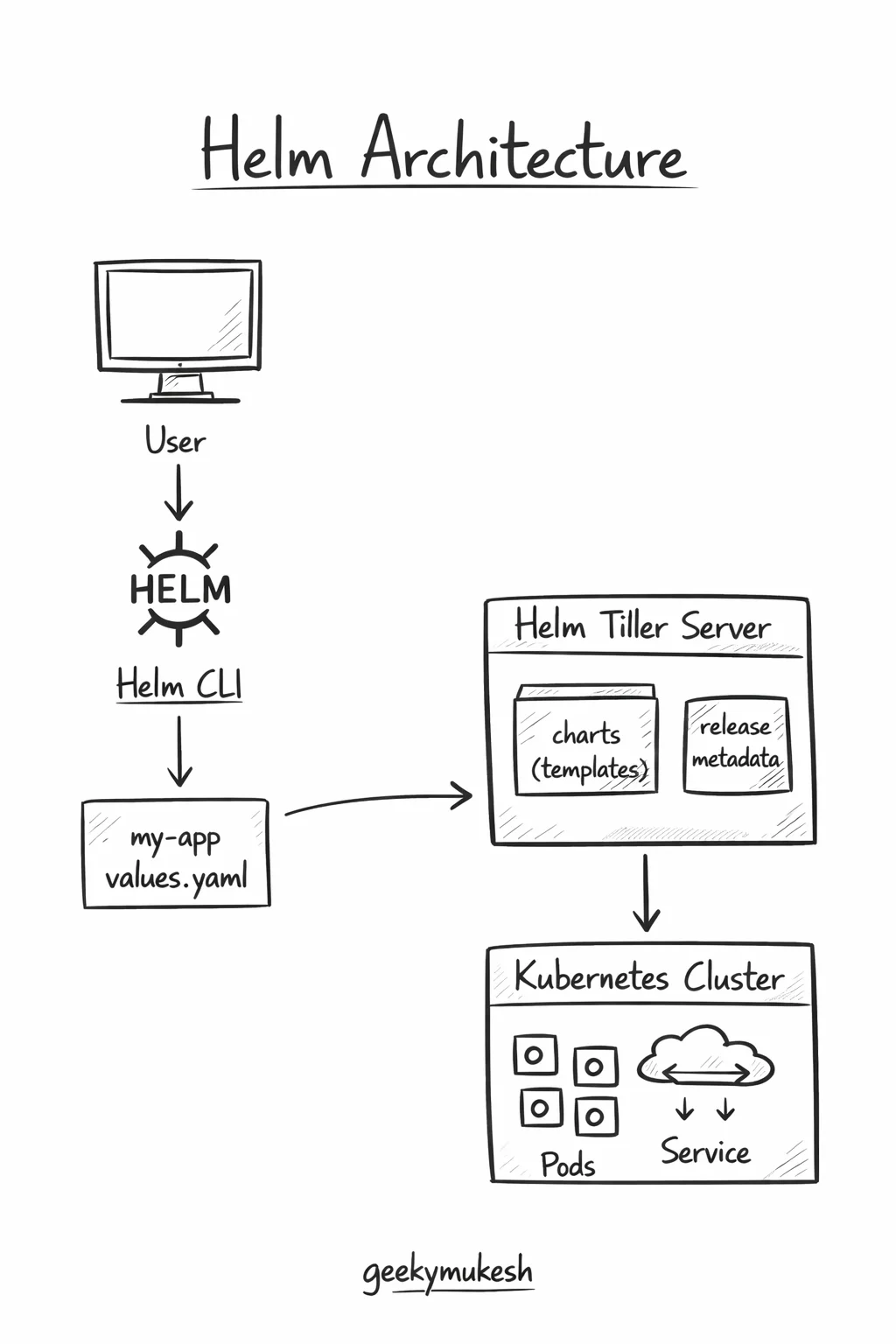
6. Suggested Diagram for Week 1

Helm Architecture
Objective
In this week, you will understand how Helm works internally. You will learn how the Helm CLI interacts with Kubernetes, how releases are created, stored, and managed, and why Helm v3 changed the architecture completely.
By the end of this section, you will:
- Clearly understand Helm’s internal workflow
- Know what happens when you run
helm install - Understand how Helm tracks state and versions
- Be able to debug Helm-related issues confidently
1. Why Helm Architecture Matters
Before using Helm in production, you must understand how it works under the hood.
Many beginners use Helm commands blindly.
However, when something breaks, they don’t know where to look.
Therefore, learning Helm architecture early will:
- Help you debug failed installs
- Make upgrades and rollbacks safer
- Improve your confidence in production clusters
In short, architecture knowledge turns Helm from magic into logic.
2. Helm Components (Then vs Now)
Helm v2 (Old – For Understanding Only)
Earlier versions of Helm had two main components:
- Helm CLI
- Tiller (Server-side component)
Tiller was installed inside the Kubernetes cluster.
It had full access to the cluster.
Because of this:
- Security was weak
- RBAC was difficult to manage
- Many enterprises avoided Helm v2
As a result, Helm v2 is deprecated and should not be used.
Helm v3 (Current & Recommended)
Helm v3 removed Tiller completely.
Now, Helm has:
- Only one main component: Helm CLI
- No server-side process
- Direct interaction with Kubernetes API
This change made Helm:
- More secure
- Easier to understand
- Fully compatible with Kubernetes RBAC
👉 Helm v3 is now Kubernetes-native
3. Helm CLI (The Brain of Helm)
The Helm CLI is the command-line tool you install on your system.
It is responsible for:
- Rendering templates
- Reading values.yaml
- Communicating with Kubernetes API
- Managing releases
Common Helm CLI commands:
helm install
helm upgrade
helm rollback
helm uninstall
helm list
helm status
Each command triggers a specific workflow internally.
4. What Happens During helm install (Step-by-Step)
Let’s break this down clearly.
When you run:
helm install my-app mychart/
Step 1: Chart Loading
First, Helm:
- Reads
Chart.yaml - Loads
values.yaml - Reads all files inside
templates/
Step 2: Template Rendering
Next, Helm:
- Replaces template placeholders (
{{ }}) - Injects values from
values.yamlor--set - Generates plain Kubernetes YAML
At this stage:
- Helm is NOT talking to Kubernetes yet
- You can preview this output using:
helm template mychart/
This is extremely useful for debugging.
Step 3: Kubernetes API Interaction
After rendering, Helm:
- Sends the generated YAML to the Kubernetes API Server
- Kubernetes validates and creates resources
These resources include:
- Deployments
- Services
- ConfigMaps
- Secrets
- Ingress (if defined)
Step 4: Release Creation
Once resources are created, Helm:
- Creates a release
- Assigns a version number (v1)
- Stores release metadata inside the cluster
This metadata is critical for:
- Upgrades
- Rollbacks
- History tracking
5. Helm Releases (Very Important Concept)
A release is:
A specific instance of a Helm chart deployed to a cluster.
Each release has:
- A unique name (
my-app) - A revision number (
1,2,3, …) - Stored configuration
- Status (deployed, failed, superseded)
You can view releases using:
helm list
helm status my-app
helm history my-app
6. Where Does Helm Store Release Data?
In Helm v3, release information is stored as:
- Kubernetes Secrets
- Inside the same namespace as the release
Each secret contains:
- Rendered manifests
- Values used
- Revision data
- Status
Example:
kubectl get secrets
This design:
- Uses Kubernetes-native storage
- Respects RBAC
- Improves security
7. Upgrades in Helm (Architecture View)
When you run:
helm upgrade my-app mychart/
Helm:
- Renders templates again
- Compares new output with existing resources
- Applies only the changes
- Creates a new release revision
Old release data is NOT deleted.
It is kept for rollback.
8. Rollbacks in Helm (Architecture View)
When you rollback:
helm rollback my-app 1
Helm:
- Fetches stored release revision 1
- Re-applies those manifests
- Marks current version as superseded
This makes rollbacks:
- Fast
- Safe
- Predictable
9. Common Architecture-Level Errors
❌ Error: cannot re-use a name that is still in use
Cause: Release already exists
Fix:
helm uninstall my-app
or use a new release name.
❌ Error: UPGRADE FAILED
Cause: Invalid Kubernetes manifest
Fix:
helm upgrade my-app mychart/ --dry-run --debug
❌ Error: Permission denied
Cause: Kubernetes RBAC issue
Fix: Check namespace permissions and roles.
10. Best Practices (Architecture Level)
- Always use
helm templatefor debugging - Use
--dry-runbefore production upgrades - Keep release names meaningful
- Avoid deleting Helm secrets manually
- Store values files in Git
11. Suggested Diagram for Week 2
Helm Chart Structure & Templates
Objective
In this week, you will deeply understand how Helm charts are structured and how templating actually works. This is one of the most important weeks because 90% of Helm problems come from templates.
By the end of this week, you will:
- Understand every file in a Helm chart
- Write your own templates confidently
- Use values correctly
- Avoid common templating mistakes
- Debug template issues effectively
1. Why Chart Structure Matters
At first glance, a Helm chart looks like a folder with YAML files.
However, every file has a specific role.
If you don’t understand this structure:
- Charts become hard to maintain
- Upgrades break unexpectedly
- Reuse becomes impossible
Therefore, learning chart structure early will save a lot of time later.
2. Basic Helm Chart Structure
When you create a chart using:
helm create mychart
Helm generates this structure:
mychart/
├── Chart.yaml
├── values.yaml
├── templates/
│   ├── deployment.yaml
│   ├── service.yaml
│   ├── _helpers.tpl
│   └── ingress.yaml
├── charts/
└── .helmignore
Each file and folder has a clear purpose.
3. Chart.yaml (Chart Metadata)
Chart.yaml describes what your chart is.
Example:
apiVersion: v2
name: mychart
description: A Helm chart for Kubernetes
type: application
version: 0.1.0
appVersion: "1.0"
Important fields explained:
- apiVersion – Always
v2for Helm v3 - name – Chart name
- version – Chart version (changes when chart changes)
- appVersion – Application version (informational)
👉 Important rule:
- Change
versionwhen templates or chart logic change - Change
appVersionwhen the app image version changes
4. values.yaml (Configuration Heart of Helm)
values.yaml holds default configuration values.
This file is critical because:
- Templates read values from here
- Environments override values differently
- CI/CD pipelines rely on values files
Example:
replicaCount: 2

image:
  repository: nginx
  tag: 1.21
  pullPolicy: IfNotPresent

service:
  type: ClusterIP
  port: 80
Why values.yaml is powerful:
- Same chart → different environments
- No template modification needed
- Clean separation of logic and config
5. templates/ Directory (Where Magic Happens)
The templates/ folder contains Kubernetes manifests with placeholders.
These files are NOT pure YAML.
They are Go templates rendered by Helm.
Example deployment.yaml:
apiVersion: apps/v1
kind: Deployment
metadata:
  name: {{ .Release.Name }}
spec:
  replicas: {{ .Values.replicaCount }}
Key template elements:
{{ }}→ template expression.Values→ values from values.yaml.Release→ release information
6. Understanding Template Context (.)
In Helm templates, . means current context.
Common built-in objects:
.Values– configuration values.Release.Name– release name.Release.Namespace– namespace.Chart.Name– chart name
Example:
metadata:
  labels:
    app: {{ .Chart.Name }}
    release: {{ .Release.Name }}
Understanding context prevents nil pointer errors, which are very common.
7. _helpers.tpl (Reusable Template Logic)
_helpers.tpl is used to define reusable template functions.
Example:
{{- define "mychart.fullname" -}}
{{ .Release.Name }}-{{ .Chart.Name }}
{{- end -}}
Usage:
name: {{ include "mychart.fullname" . }}
Why helpers matter:
- Reduce duplication
- Standardize naming
- Improve readability
8. Conditionals (if / else)
Conditionals help enable or disable resources.
Example:
{{- if .Values.ingress.enabled }}
apiVersion: networking.k8s.io/v1
kind: Ingress
...
{{- end }}
Example values.yaml:
ingress:
  enabled: true
This allows:
- Optional features
- Environment-specific behavior
9. Loops (range)
Loops are used when creating multiple similar resources.
Example:
{{- range .Values.env }}
- name: {{ .name }}
  value: {{ .value }}
{{- end }}
values.yaml:
env:
  - name: ENV
    value: prod
  - name: DEBUG
    value: "false"
10. Indentation & Whitespace (Critical Topic)
Helm is very sensitive to indentation.
Bad indentation = invalid YAML.
Use:
{{-to trim whitespace|-carefully for multi-line values
Always validate output using:
helm template mychart
11. Debugging Templates (Very Important)
Preview rendered YAML:
helm template mychart
Debug install:
helm install myapp mychart --dry-run --debug
Common template errors:
- Missing values
- Wrong indentation
- Incorrect object reference
12. Common Mistakes Beginners Make
❌ Hardcoding values in templates
❌ Skipping helpers.tpl
❌ Not using conditionals
❌ Not validating templates
❌ Mixing logic with configuration
13. Best Practices for Templates
- Keep templates simple
- Use helpers for names & labels
- Use values.yaml for everything configurable
- Validate output before deployment
- Version-control your charts
14. Suggested Diagram for Week 3

Installing, Customizing, and Managing Helm Charts
Objective
This week focuses on actually using Helm in real environments. You will learn how to install charts properly, customize them safely, manage namespaces, handle multiple environments, and avoid common production mistakes.
By the end of this week, you will:
- Install charts correctly using best practices
- Customize charts using values files and flags
- Understand
--setvs-fdeeply - Manage namespaces cleanly
- Deploy the same chart across dev, staging, and prod
1. Installing a Helm Chart (The Right Way)
Most beginners run:
helm install my-app mychart
While this works, it is not enough for real projects.
Before installing any chart, you should:
- Inspect the chart
- Review default values
- Decide how configuration will be overridden
2. Inspecting a Chart Before Installation
Show chart metadata
helm show chart mychart
This helps you understand:
- Chart version
- Application version
- Chart description
View default values
helm show values mychart
This step is extremely important.
Why?
- You discover all configurable options
- You avoid guessing parameter names
- You prevent broken deployments
👉 Never install a chart without reading its values
3. Using --dry-run and --debug (Mandatory Habit)
Before deploying to any cluster:
helm install my-app mychart --dry-run --debug
This command:
- Renders templates
- Shows final Kubernetes YAML
- Does NOT create resources
This is your first line of defense against failures.
4. Customizing Charts: --set vs values.yaml
Helm allows configuration overrides in two ways.
Method 1: --set (Inline Overrides)
Example:
helm install my-app mychart \
  --set replicaCount=3 \
  --set image.tag=1.21
Pros:
- Quick
- Good for small changes
Cons:
- Hard to maintain
- Error-prone for complex values
👉 Best for quick tests only
Method 2: Custom Values File (-f) – Recommended
Create a file:
# values-dev.yaml
replicaCount: 2
image:
  tag: "1.21"
Install:
helm install my-app mychart -f values-dev.yaml
Why this is better:
- Clean configuration
- Version controlled
- Reusable across environments
👉 Always prefer values files in real projects
5. Managing Multiple Environments (Dev / Staging / Prod)
Real systems always have multiple environments.
Best practice:
values-dev.yaml
values-staging.yaml
values-prod.yaml
Example:
helm install my-app mychart -f values-prod.yaml
This allows:
- Same chart
- Different behavior
- Zero template changes
6. Namespaces and Helm (Very Important)
Helm installs releases into a namespace.
Specify namespace explicitly
helm install my-app mychart -n dev --create-namespace
Why this matters:
- Avoids accidental installs in
default - Improves isolation
- Works better with RBAC
Check namespace resources
kubectl get all -n dev
7. Listing and Tracking Releases
Helm tracks everything as a release.
List releases
helm list
helm list -n dev
Get detailed status
helm status my-app -n dev
This shows:
- Deployed resources
- Notes from the chart
- Current status
8. Understanding Helm Notes
Many charts include a NOTES.txt file.
After installation, Helm prints helpful instructions.
Example:
- How to access the service
- Port-forward commands
- Default credentials
👉 Always read Helm NOTES
9. Upgrading Existing Releases
When configuration changes:
helm upgrade my-app mychart -f values-prod.yaml
Helm will:
- Re-render templates
- Compare with existing resources
- Apply only required changes
- Create a new revision
Check history:
helm history my-app
10. Handling Failed Installs and Upgrades
Common failure reasons:
- Invalid YAML
- Wrong values
- Resource conflicts
- RBAC issues
Debug failed upgrade:
helm upgrade my-app mychart --dry-run --debug
Recover from failure:
helm rollback my-app 1
11. Uninstalling a Helm Release
Remove a release:
helm uninstall my-app -n dev
This:
- Deletes Kubernetes resources
- Keeps cluster clean
- Removes Helm release metadata
👉 Always uninstall instead of deleting resources manually.
12. Common Beginner Mistakes (Week 4)
❌ Installing without reviewing values
❌ Using only --set
❌ Forgetting namespace
❌ Skipping dry-run
❌ Editing templates for env changes
13. Best Practices (Week 4)
- Use values files per environment
- Always specify namespace
- Preview changes before upgrades
- Keep values in Git
- Use meaningful release names
14. Suggested Diagram for Week 4

Helm Release Management & Rollbacks
Objective
This week focuses on how Helm manages application state over time. You will learn how Helm tracks releases, how revisions work, how upgrades are applied, and how rollbacks restore stability during failures.
By the end of this week, you will:
- Fully understand Helm releases and revisions
- Perform safe upgrades in production
- Roll back failed deployments confidently
- Debug failed releases effectively
- Apply release management best practices
1. What Is a Helm Release (Revisited Deeply)
A Helm release is not just an installation.
It is a recorded state of your application at a point in time.
Each release contains:
- Rendered Kubernetes manifests
- Values used for deployment
- Release version (revision)
- Status (deployed, failed, superseded)
Therefore, Helm always knows:
- What was deployed
- When it was deployed
- How to revert it
This is the foundation of Helm’s power.
2. Release Revisions Explained Clearly
Every Helm release has revisions.
Example:
helm history my-app
Output:
REVISION   UPDATED                  STATUS     DESCRIPTION
1          2026-01-01 10:00:00      deployed   Install complete
2          2026-01-02 14:30:00      deployed   Upgrade complete
3          2026-01-03 09:10:00      failed     Upgrade failed
Important points:
- Revision numbers always increase
- Failed revisions are kept
- Older revisions are never deleted automatically
This design enables safe rollbacks.
3. How Helm Stores Release Data
Helm v3 stores release data as:
- Kubernetes Secrets
- One secret per revision
- Stored in the same namespace as the release
You can see them using:
kubectl get secrets -n dev
These secrets contain:
- Base64-encoded release information
- Rendered manifests
- Values used
👉 Never delete these secrets manually, or Helm will lose history.
4. Helm Upgrade: What Really Happens
When you run:
helm upgrade my-app mychart -f values-prod.yaml
Helm performs these steps:
- Renders templates with new values
- Compares rendered output with existing resources
- Applies only the differences
- Creates a new revision
- Marks the previous revision as superseded
This process is declarative and safe, as long as templates are correct.
5. Zero-Downtime Upgrades (Very Important)
Helm itself does not guarantee zero downtime.
Kubernetes does — if your manifests are correct.
To achieve zero downtime:
- Use Deployments (not Pods directly)
- Configure rolling updates properly
- Avoid breaking changes
Example:
strategy:
  type: RollingUpdate
  rollingUpdate:
    maxUnavailable: 0
    maxSurge: 1
👉 Helm applies changes; Kubernetes handles rollout.
6. Rollbacks: Your Safety Net
When something goes wrong:
helm rollback my-app 1
Helm will:
- Fetch revision 1
- Re-apply its manifests
- Mark current revision as superseded
Rollbacks are:
- Fast
- Predictable
- Production-safe
Check rollback result:
helm status my-app
7. Rollback Best Practices
- Always rollback to a known good revision
- Avoid rolling back too many versions blindly
- Investigate failure before retrying upgrade
- Store values files used per revision
👉 Rollbacks are powerful, but they should be intentional.
8. Handling Failed Releases
A failed upgrade does not break Helm.
It creates a failed revision.
You can:
helm history my-app
helm rollback my-app <previous-revision>
If needed, fix the issue and upgrade again:
helm upgrade my-app mychart -f values-prod.yaml
9. Atomic Upgrades (Advanced but Important)
Helm supports atomic upgrades:
helm upgrade my-app mychart --atomic
What this does:
- If upgrade fails, Helm automatically rolls back
- No manual intervention needed
👉 Highly recommended for production
10. Cleanup and Uninstalling Releases
To remove a release:
helm uninstall my-app -n prod
This:
- Deletes all Kubernetes resources
- Removes Helm release metadata
- Cleans the namespace
Avoid deleting resources manually.
Always uninstall via Helm.
11. Common Release Management Mistakes
❌ Ignoring failed revisions
❌ Deleting Helm secrets
❌ Skipping dry-run before upgrades
❌ Not checking history
❌ Using breaking changes without rollback plan
12. Best Practices (Week 5)
- Always run upgrades with
--dry-runfirst - Use
--atomicfor production upgrades - Track revision history
- Keep values files in version control
- Understand rollback impact before using it
13. Suggested Diagram for Week 5

Helm Repositories & Dependency Management
Objective
This week focuses on how Helm charts are stored, shared, and reused. You will learn how Helm repositories work, how to use public and private repositories, and how to manage chart dependencies using subcharts.
By the end of this week, you will:
- Understand Helm repositories clearly
- Use public repositories like Artifact Hub
- Create and use private Helm repositories
- Manage chart dependencies safely
- Understand subcharts and dependency versions
1. What Is a Helm Repository?
A Helm repository is a location where Helm charts are stored and indexed.
Think of it like:
- Docker Hub for container images
- npm registry for JavaScript packages
A Helm repository contains:
- Packaged charts (
.tgzfiles) - An
index.yamlfile describing available charts
Helm uses this index to:
- Search charts
- Download correct versions
- Resolve dependencies
2. Public Helm Repositories
Artifact Hub (Most Important)
Artifact Hub is the central place for public Helm charts.
It hosts:
- Official charts
- Community-maintained charts
- Vendor charts (databases, monitoring tools, ingress controllers)
Examples:
- NGINX
- PostgreSQL
- Redis
- Prometheus
👉 Always prefer well-maintained charts with good documentation
Adding a Public Repository
helm repo add bitnami https://charts.bitnami.com/bitnami
helm repo update
Search charts:
helm search repo nginx
Inspect chart:
helm show values bitnami/nginx
3. Why Repositories Matter in Real Projects
Repositories allow:
- Standardized deployments
- Versioned upgrades
- Team collaboration
- CI/CD automation
Without repositories:
- Charts must be copied manually
- Version tracking becomes messy
- Reuse becomes difficult
4. Private Helm Repositories (Enterprise Use Case)
In real companies, not all charts are public.
Private repositories are used for:
- Internal applications
- Company-specific platforms
- Security-sensitive charts
Popular ways to host private repos:
- GitHub Pages
- Amazon S3
- Google Cloud Storage
- Artifactory / Nexus
Example: Using a Private Repository
helm repo add mycompany https://charts.mycompany.com
helm repo update
Install chart:
helm install internal-app mycompany/internal-chart
5. Packaging Your Own Chart
Before uploading to a repository, charts must be packaged.
helm package mychart
This creates:
mychart-0.1.0.tgz
This file can now be uploaded to:
- A public repo
- A private repo
👉 Versioning here is critical
6. Chart Versioning (Very Important)
Helm uses Semantic Versioning:
MAJOR.MINOR.PATCH
Example:
1.0.0→ stable release1.1.0→ new feature1.1.1→ bug fix
Rules:
- Increment chart version when chart logic changes
- Increment appVersion when app image changes
This prevents:
- Unexpected upgrades
- Dependency conflicts
7. Chart Dependencies (Subcharts Explained)
Large applications often depend on other services.
Example:
- Web app depends on Redis
- API depends on PostgreSQL
Helm supports this using dependencies.
Defined in Chart.yaml:
dependencies:
  - name: redis
    version: 17.3.0
    repository: https://charts.bitnami.com/bitnami
8. Downloading Dependencies
After defining dependencies:
helm dependency update
This:
- Downloads subcharts
- Stores them in
charts/directory
Your chart now contains:
charts/
  redis-17.3.0.tgz
9. How Subcharts Work Internally
Subcharts:
- Are deployed automatically
- Have their own templates and values
- Can be configured from the parent chart
Parent chart values example:
redis:
  auth:
    enabled: false
Helm merges values:
- Parent → Subchart
- Overrides defaults
10. Enabling and Disabling Dependencies
Dependencies can be optional.
Example:
dependencies:
  - name: redis
    condition: redis.enabled
values.yaml:
redis:
  enabled: true
This allows:
- Feature toggles
- Environment-based dependencies
11. Dependency Management Best Practices
- Pin exact dependency versions
- Avoid using
latest - Review subchart values carefully
- Disable unused components
- Keep dependencies updated deliberately
👉 Dependencies should be controlled, not automatic.
12. Common Repository & Dependency Errors
❌ Error: chart not found
Cause: Repo not added or outdated
Fix:
helm repo update
❌ Error: Dependency version conflict
Cause: Incompatible versions
Fix: Pin correct versions in Chart.yaml
❌ Error: Subchart values not applied
Cause: Wrong values hierarchy
Fix: Use correct parent key (redis.*)
13. Suggested Diagram for Week 6

Helm Best Practices, Security & Validation
Objective
This week focuses on making Helm charts safe, maintainable, and production-ready. You will learn best practices, security considerations, validation techniques, and common pitfalls to avoid.
By the end of this week, you will:
- Write clean and reusable Helm charts
- Secure sensitive data properly
- Validate charts before deployment
- Avoid common production mistakes
- Prepare charts for CI/CD pipelines
1. Why Best Practices Matter in Helm
Helm makes deployments easy.
However, bad Helm practices make failures easier.
Without best practices:
- Charts become hard to maintain
- Security risks increase
- CI/CD pipelines break
- Debugging becomes painful
Therefore, production Helm usage requires discipline.
2. Helm Lint (Your First Safety Check)
Helm provides a built-in linter.
Run:
helm lint mychart
This checks:
- Chart structure
- YAML syntax
- Common template mistakes
- Required fields
👉 Always run helm lint before committing code.
3. Template Validation Before Deployment
Never deploy blindly.
Render templates locally:
helm template mychart
Combine with dry-run:
helm install my-app mychart --dry-run --debug
This ensures:
- YAML is valid
- Values are correct
- Resources are created as expected
4. Handling Secrets Securely
❌ What NOT to Do
- Hardcode secrets in
values.yaml - Commit secrets to Git
✅ Recommended Approaches
- Use Kubernetes Secrets directly
- Use external secret managers
- Vault
- AWS Secrets Manager
- Azure Key Vault
- Use sealed secrets or external-secrets operators
Example (referencing existing secret):
env:
  - name: DB_PASSWORD
    valueFrom:
      secretKeyRef:
        name: db-secret
        key: password
5. Avoiding Hardcoded Values
Hardcoding leads to:
- Inflexible charts
- Environment-specific bugs
Instead:
- Use
values.yaml - Provide sensible defaults
- Document overrides
Example:
resources:
  limits:
    cpu: {{ .Values.resources.limits.cpu }}
6. Using Helpers for Consistency
Use _helpers.tpl to:
- Generate names
- Create common labels
- Enforce naming standards
Example:
labels:
  app.kubernetes.io/name: {{ include "mychart.name" . }}
  app.kubernetes.io/instance: {{ .Release.Name }}
This improves:
- Readability
- Consistency
- Tooling compatibility
7. Security Contexts in Charts
Security should be explicit.
Example:
securityContext:
  runAsUser: 1000
  runAsNonRoot: true
Best practices:
- Avoid running containers as root
- Drop unnecessary Linux capabilities
- Use read-only root filesystems
8. RBAC in Helm Charts
Some charts require permissions.
Best practice:
- Make RBAC optional
- Allow users to disable it
Example:
rbac:
  create: true
Conditional template:
{{- if .Values.rbac.create }}
kind: Role
...
{{- end }}
9. Resource Requests and Limits
Always define:
- CPU requests
- Memory requests
Example:
resources:
  requests:
    cpu: 100m
    memory: 128Mi
This:
- Prevents resource starvation
- Improves cluster stability
10. Using NOTES.txt Effectively
templates/NOTES.txt is shown after install.
Use it to:
- Show access instructions
- Display next steps
- Provide useful commands
Example:
Access your app using:
kubectl port-forward svc/my-app 8080:80
11. CI/CD Integration Checklist
Before using Helm in CI/CD:
- Run
helm lint - Run
helm template - Use
--atomicfor upgrades - Validate values files
- Test rollback scenarios
12. Common Security Mistakes
❌ Storing secrets in Git
❌ Overly permissive RBAC
❌ Running containers as root
❌ Missing resource limits
❌ Skipping validation
13. Suggested Diagram for Week 7

Helm in CI/CD, GitOps, and Team Workflows
Objective
This final week focuses on using Helm at scale. You will learn how Helm fits into CI/CD pipelines, how GitOps works with Helm, and how teams collaborate safely and efficiently.
By the end of this week, you will:
- Use Helm in CI/CD pipelines
- Understand GitOps with Helm
- Deploy to multiple environments safely
- Collaborate with teams using Helm
- Follow real-world enterprise patterns
1. Why Helm Alone Is Not Enough
Helm is powerful.
However, running Helm manually does not scale.
In real companies:
- Multiple developers push code
- Deployments happen many times a day
- Manual commands cause mistakes
Therefore, Helm is usually combined with:
- CI/CD pipelines
- GitOps tools
- Approval workflows
This ensures safe, repeatable deployments.
2. Helm in CI/CD Pipelines (Core Concept)
In CI/CD, Helm is used to:
- Deploy applications automatically
- Upgrade existing releases
- Roll back on failure
Typical flow:
Code Push → CI Pipeline → Helm Upgrade → Kubernetes
Helm commands are executed by the pipeline, not humans.
3. Basic CI/CD Pipeline with Helm
Example pipeline steps:
- Checkout code
- Build container image
- Update image tag in values file
- Run Helm validation
- Deploy using Helm
Example deployment step:
helm upgrade --install my-app mychart \
  -f values-prod.yaml \
  --atomic \
  --timeout 5m
Why these flags matter:
--install→ install if not exists--atomic→ auto rollback on failure--timeout→ avoid hanging deployments
4. Handling Multiple Environments in CI/CD
A good structure:
values-dev.yaml
values-staging.yaml
values-prod.yaml
Pipeline selects values based on branch:
develop→ devrelease→ stagingmain→ production
This avoids:
- Hardcoding environments
- Accidental prod deployments
5. Secrets in CI/CD (Very Important)
Never store secrets in:
- values.yaml
- Git repositories
Instead:
- Use Kubernetes Secrets
- Use secret managers
- Inject secrets at runtime
Example:
helm upgrade my-app mychart \
  --set image.tag=$IMAGE_TAG
Secrets remain outside Helm values.
6. GitOps Explained (Simple Language)
GitOps means:
Git is the single source of truth for deployments.
In GitOps:
- Git stores desired state
- Tools sync cluster with Git
- Humans do not run deploy commands
Benefits:
- Full audit trail
- Easy rollback
- Better security
7. Helm + GitOps (How They Work Together)
In GitOps:
- Helm renders manifests
- GitOps tool applies them
Common GitOps tools:
- ArgoCD
- Flux
Helm is used for:
- Packaging
- Configuration
- Versioning
GitOps tool is used for:
- Sync
- Drift detection
- Auto-healing
8. Helm with ArgoCD (Real-World Pattern)
Typical setup:
Git Repo → ArgoCD → Helm Chart → Kubernetes
ArgoCD:
- Watches Git repo
- Detects changes
- Applies Helm chart automatically
Example ArgoCD app:
spec:
  source:
    repoURL: https://github.com/myorg/charts
    path: mychart
    helm:
      valueFiles:
        - values-prod.yaml
This enables:
- Fully automated deployments
- Safe rollbacks
- Visual status tracking
9. Team Collaboration with Helm
Helm helps teams collaborate by:
- Standardizing deployments
- Reusing charts
- Sharing best practices
Recommended responsibilities:
- Platform team → owns charts
- App teams → override values
- CI/CD → handles deployments
This separation prevents chaos.
10. Chart Promotion Strategy
Do NOT modify charts per environment.
Instead:
- Same chart
- Different values files
Promotion flow:
dev → staging → prod
Only values change.
Chart stays the same.
This reduces:
- Bugs
- Configuration drift
- Deployment surprises
11. Rollbacks in CI/CD and GitOps
Rollback strategies:
- Helm rollback
- Git revert
In GitOps:
- Revert Git commit
- GitOps tool syncs cluster
This is:
- Simple
- Auditable
- Reliable
12. Observability and Helm Deployments
After deployment:
- Monitor rollout status
- Track metrics
- Observe logs
Useful commands:
helm status my-app
kubectl rollout status deploy/my-app
Deployment is not complete until:
- Pods are healthy
- Metrics are stable
13. Common Mistakes in Team & CI/CD Usage
❌ Manual production deployments
❌ Storing secrets in Git
❌ Skipping atomic upgrades
❌ No rollback strategy
❌ Multiple chart versions per env
14. Best Practices (Week 8)
- Use Helm only via pipelines
- Use GitOps for production
- Keep charts immutable
- Separate values per environment
- Enforce reviews on values changes
15. Suggested Diagram for Week 8


Leave a Reply